Whether you’re creating product demo videos, recording online courses, reporting work progress, or capturing gaming highlights, a great screen recording software can dramatically boost your productivity. In 2026, there are more choices than ever — from free open-source solutions to premium professional tools — and the feature gaps between them continue to widen.
Based on hands-on testing, we evaluated the 6 most popular screen recorders across five dimensions: recording quality, feature richness, ease of use, export options, and pricing. Here’s everything you need to know to pick the right tool.
How We Evaluated Screen Recording Software
Before diving into our recommendations, here are the criteria we used to ensure a fair and useful comparison:
- Recording Quality: Maximum supported resolution and frame rate — does the output look crisp and smooth?
- Feature Richness: Does it support auto-zoom, annotations, background replacement, camera overlay, and other advanced capabilities?
- Ease of Use: How easy is it to install, configure, and start recording? Can beginners jump right in?
- Export Options: Which output formats are supported (MP4, GIF, WebM, etc.), and how much customization is available?
- Pricing: Is it free or paid? Are there feature limitations or watermarks?
1. OpenScreen — Best Free Open Source Screen Recorder
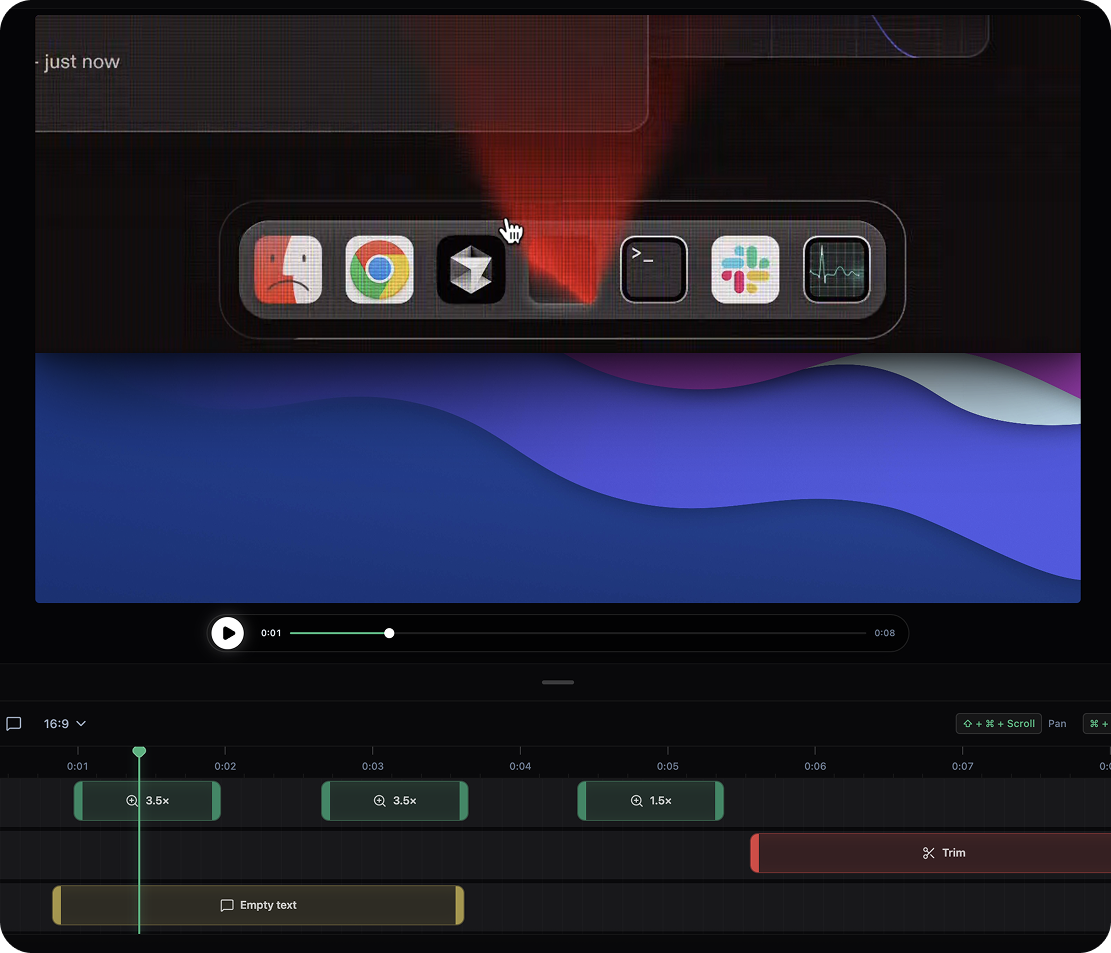
OpenScreen is a completely free, open-source screen recording tool with over 34,000 stars on GitHub. Its core mission is to help anyone create professional-grade product demo videos without paying a dime, creating an account, or adding watermarks.
Key Features
- Auto-Zoom Tracking: Automatically focuses and zooms into the area around your cursor during recording, highlighting key actions without any manual editing. This feature is typically a paid add-on in competing tools, but OpenScreen offers it for free
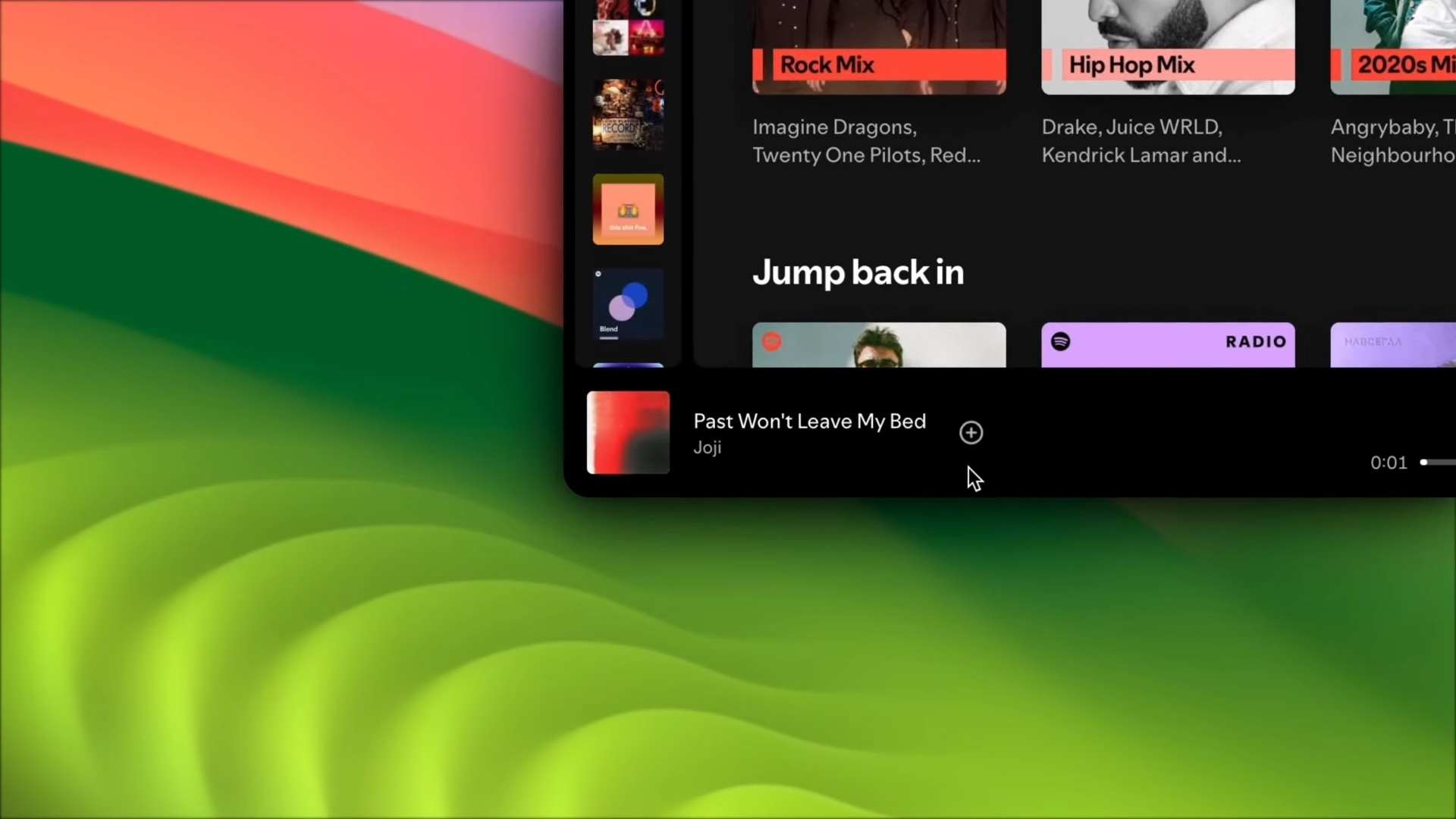
- Beautiful Background Wallpapers: Built-in gradient background templates that instantly polish your recordings, making them look like they were produced by a professional team
- Real-Time Annotations: Add arrows, text, and highlights on the fly while recording to communicate your ideas clearly
- Multiple Export Formats: Supports MP4 and WebM output to cover different sharing scenarios
- Cross-Platform Support: Fully supports macOS (Apple Silicon and Intel), Windows, and Linux
Pros and Cons
Pros: Completely free and open-source (MIT License) with no watermarks or feature restrictions; cross-platform support across all three major operating systems; all processing happens locally — nothing is uploaded to the cloud, ensuring your privacy; auto-zoom and background effects rival paid tools.
Cons: As a relatively young project, advanced video editing features (multi-track timeline, effects, filters) are less mature than dedicated editors; the plugin ecosystem is still growing.
Best For
Product managers recording feature demos, developers creating bug report videos, content creators producing tutorials, and anyone who needs to quickly create professional screen recordings. Download OpenScreen for free and get started in minutes.
2. OBS Studio — Most Powerful Open Source Tool
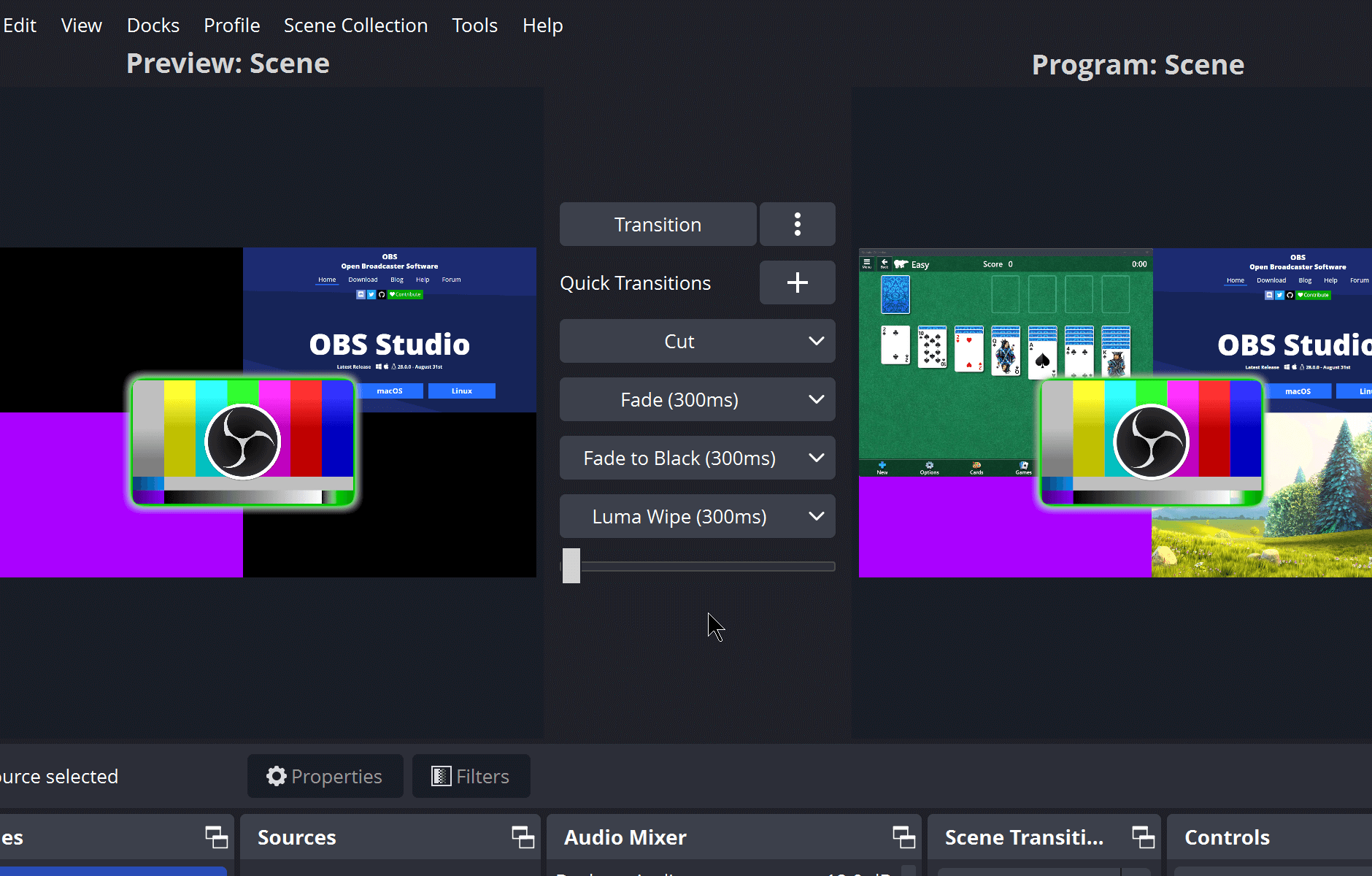
OBS Studio is the world’s most widely used open-source screen recording and live streaming software, with millions of monthly active users. It can capture and stream virtually anything, making it the go-to choice for live streamers and professional content creators.
Key Features
OBS Studio supports multi-source mixing — you can simultaneously record your screen, webcam, microphone, and system audio, with scene switching to freely toggle between multiple layouts. It supports MKV, MP4, FLV, and virtually any format through custom FFmpeg output. Hardware encoding (Intel QSV, NVIDIA NVENC) enables efficient high-quality recording.
Additionally, OBS supports RTMP streaming to Twitch, YouTube, and other platforms, backed by a rich third-party plugin ecosystem that can extend functionality almost indefinitely.
Pros and Cons
Pros: The most feature-complete tool available — handles both live streaming and recording; completely free and open-source; excellent hardware encoding support for high-performance recording; massive community and plugin ecosystem.
Cons: Complex interface with a steep learning curve — beginners may need days to become proficient; overkill for simple screen recording tasks; the workflow for quick recordings feels heavy.
Best For
Game streamers, professional live broadcasters, and advanced users who need to capture multiple sources simultaneously. If you just want to quickly record a screen operation, OBS Studio might be more tool than you need.
3. Screen Studio — Best for Mac Users
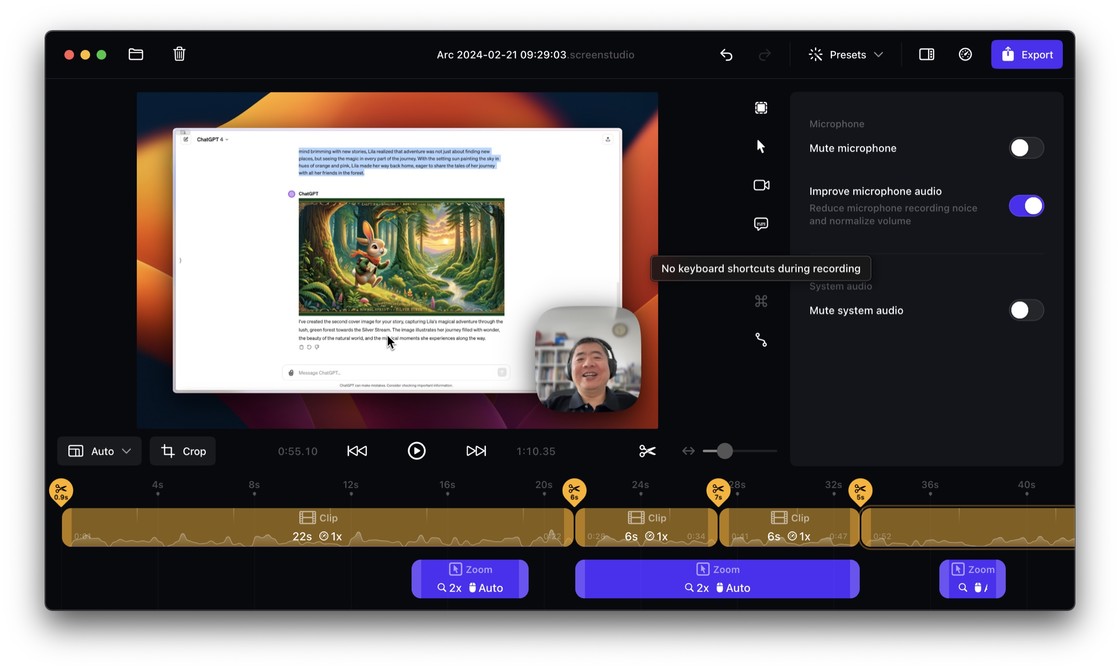
Screen Studio is one of the highest-rated screen recording tools on macOS, known for its cinematic auto-zoom effects and remarkably simple user experience. It’s widely considered the gold standard for product demo videos.
Key Features
Screen Studio’s core highlight is intelligent cursor tracking with cinematic zoom animations — it automatically generates smooth zoom transitions as you move your mouse, with optional cursor path smoothing and motion blur. The final output often requires no post-editing at all. It also supports recording iPhone and iPad screens via wired or Wi-Fi connection, with a library of beautiful built-in background templates.
Pros and Cons
Pros: Exceptional output quality with fluid, professional auto-zoom; extremely simple operation with zero learning curve; supports Retina (5K) recording; native macOS experience.
Cons: Only available on macOS and iOS — Windows and Linux users are out of luck; relatively expensive one-time purchase (~$89-$149); no live streaming capability; focused on recording polish rather than video editing.
Best For
Mac users who prioritize visual quality — product managers, designers, and marketers who want their recordings to look polished without post-production work.
4. ShareX — Best Free Screen Capture Suite
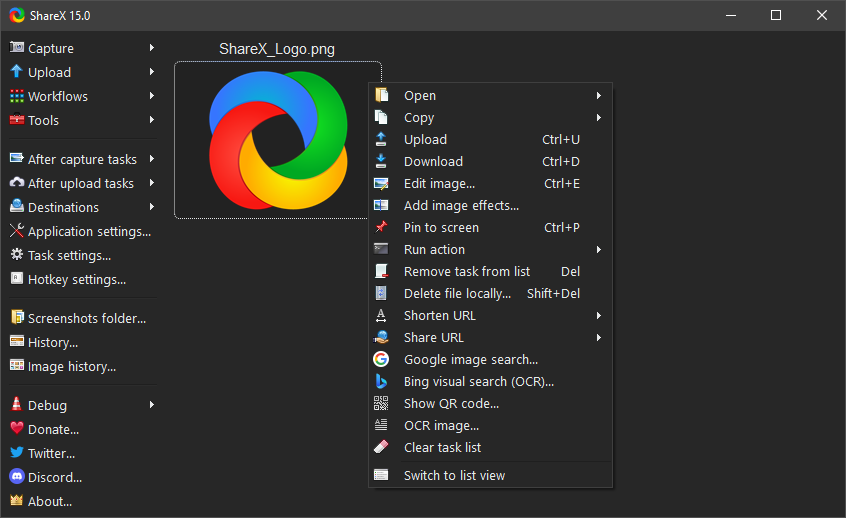
ShareX is the most comprehensive free screenshot and screen recording tool on Windows, integrating screen capture, recording, GIF creation, OCR text recognition, and numerous other utilities into one package.
Key Features
Built on FFmpeg, ShareX supports screen recording output in over 70 formats including MP4 and GIF. Its automation workflows are particularly powerful — you can configure post-recording actions to automatically upload to 80+ cloud services (Imgur, Google Drive, etc.), add watermarks, and rename files. The built-in OCR can extract text directly from screenshots, and the scrolling capture feature supports automatic stitching of long web pages.
Pros and Cons
Pros: Extremely feature-rich — screenshot and recording in one tool; completely free and open-source; powerful automation workflows; excellent GIF recording.
Cons: Windows only — Mac and Linux users cannot use it; dense interface with many options that can overwhelm newcomers; lacks auto-zoom and other visual polish features.
Best For
Windows power users who frequently need to capture screenshots, record screens, and share content — especially developers and IT professionals.
5. Built-in Screen Recorders — Xbox Game Bar and macOS Screenshot
If you only need to record your screen occasionally and don’t want to install any software, both Windows and macOS include built-in recording features accessible via keyboard shortcuts.
Windows Built-in Recorder
Press Win + G to open the Xbox Game Bar, then click the record button or press Win + Alt + R to start recording. Videos are automatically saved to the Videos/Captures folder. Note that Xbox Game Bar can only record individual application windows — not the desktop — and doesn’t support system audio recording.
macOS Built-in Recorder
Press Cmd + Shift + 5 to open the screenshot toolbar, where you can choose to record the entire screen or a selected portion. Press Options to toggle mouse cursor visibility and microphone audio. Recordings are saved to the Desktop by default.
Pros and Cons
Pros: No installation needed — built into the operating system; simple keyboard shortcut workflow; completely free.
Cons: Extremely limited — no auto-zoom, annotations, backgrounds, or any advanced features; Windows version has notable restrictions (single window only, no system audio); no post-editing capabilities; basic recording quality.
Best For
Occasional, simple recording needs where visual quality and advanced features aren’t a priority.
6. Loom — Best for Team Communication

Loom is a screen recording tool focused on asynchronous video communication, with over 25 million users worldwide. Its core philosophy is “record and share” — recordings automatically generate shareable links without manual export or upload.
Key Features
Loom’s AI capabilities are its standout feature — automatically generating subtitles, video summaries, and chapter divisions, with AI-powered responses to viewer comments. Recordings generate instant shareable links, and viewers can watch, comment, and interact directly. It also provides viewer analytics showing who watched your video and for how long.
Pros and Cons
Pros: Extremely easy to use — browser extension enables one-click recording; powerful AI features for automatic subtitles and summaries; best-in-class sharing experience for team collaboration; available across all platforms.
Cons: Free tier is heavily restricted — 25 videos max, 5 minutes each, with Loom branding watermark; requires internet connection and cloud dependency; subscription costs add up over time ($12.50+/month for Business); data stored on third-party servers raises privacy concerns.
Best For
Remote teams doing async communication, product managers recording requirement walkthroughs, and customer support creating tutorial videos.
Side-by-Side Comparison
| Screen Recorder | Recording Quality | Auto Zoom | Annotations | Export Formats | Platforms | Price | Watermark |
|---|---|---|---|---|---|---|---|
| OpenScreen | HD | Auto zoom | Text/Arrow/Highlight | MP4/WebM | Mac/Win/Linux | Free & Open Source | No watermark |
| OBS Studio | HD/4K+ | No | No | MKV/MP4/FLV, etc. | Mac/Win/Linux | Free & Open Source | No watermark |
| Screen Studio | Retina/5K | Cinematic zoom | No | MP4/GIF | Mac/iOS | $89-$149 | No watermark |
| ShareX | HD/4K | No | Basic | MP4/GIF, 70+ formats | Windows | Free & Open Source | No watermark |
| Built-in | 1080p | No | No | MP4 | Mac/Win | Free | No watermark |
| Loom | Up to 4K | No | Basic | MP4 | All platforms | Free(limited)/$12.50+/mo | Free tier has watermark |
How to Choose the Right Screen Recording Software
By Use Case
- Product demos and tutorials → OpenScreen is the best all-around choice — auto-zoom, backgrounds, and annotations in one free package
- Game streaming and broadcasting → OBS Studio is unmatched for multi-source mixing and streaming
- Polished marketing videos → Screen Studio delivers the best visual output if you’re on Mac and have budget
- Everyday screenshots and quick recordings → ShareX for Windows, built-in tools for Mac
- Team async communication → Loom’s instant sharing and AI features are ideal for remote collaboration
By Budget
- Zero budget → OpenScreen, OBS Studio, ShareX, and built-in recorders are all completely free. Among these, OpenScreen offers the best auto-zoom and visual polish for no cost
- Willing to pay → Screen Studio for Mac users who prioritize visual quality, Loom for teams that need collaboration features
Getting Started with OpenScreen
Download and Install
Visit the OpenScreen download page and choose the version for your operating system. macOS users can select Apple Silicon or Intel builds, Windows users download the installer, and Linux users get an AppImage. Double-click to install — no account registration required.
Record Your First Screen
Launch OpenScreen and select the screen area you want to record — full screen or a custom region. Click the record button to start. The auto-zoom feature will automatically follow your cursor and intelligently adjust the focal point as you work.
Add Zoom and Annotation Effects
In the settings panel, adjust zoom sensitivity, animation speed, and zoom level. During recording, use keyboard shortcuts to toggle annotation tools — add arrows to highlight key actions, text labels to explain steps, and highlights to mark important areas. All annotations render in real-time.
Export and Share
After recording, OpenScreen processes the video in the background, applying your selected background and zoom effects. Choose your export format — MP4 for most scenarios, WebM for web embedding. You can also customize backgrounds to give your videos a personal touch.
Frequently Asked Questions
What is the best screen recording software?
It depends on your needs. If you want a free, watermark-free screen recorder with auto-zoom, OpenScreen is the best overall choice. For game streaming and broadcasting, OBS Studio is the most powerful. For the best visual output on Mac, Screen Studio is worth the investment.
Is there a free screen recorder without watermarks?
Yes. OpenScreen, OBS Studio, and ShareX are all completely free with no watermarks. However, be aware that some tools offer a “free tier” with watermarks or time limits — Loom’s free version, for example, adds a Loom watermark to your recordings.
How can I reduce screen recording file size?
Several approaches: lower the recording resolution and frame rate (e.g., from 4K to 1080p, 60fps to 30fps); use a more efficient codec (H.265/HEVC or AV1); reduce export quality settings; or use tools like HandBrake for post-recording compression. Both OpenScreen and OBS Studio support custom encoder settings.
Can I record system audio and microphone simultaneously?
OBS Studio offers the most granular audio control, letting you separately adjust microphone and system audio levels. OpenScreen supports recording microphone audio alongside screen capture. Windows Xbox Game Bar does not support system audio recording — a notable limitation. macOS built-in recording lets you toggle the microphone option.
Is screen recording software safe for privacy?
It depends on the tool you choose. OpenScreen and OBS Studio process everything locally and don’t upload data to any cloud server, offering the highest privacy. Cloud-based tools like Loom upload videos to their servers, which raises some privacy considerations. Check each tool’s privacy policy to understand how your data is handled. We recommend prioritizing locally-processed recording solutions.
What platforms does OpenScreen support?
OpenScreen supports all three major desktop operating systems: macOS (including Apple Silicon M1/M2/M3/M4 and Intel chips), Windows, and Linux. Visit the download page to get the latest version for your platform.
Choosing the right screen recording software comes down to understanding your use case and budget. If you’re looking for a free, watermark-free recorder with professional-grade auto-zoom and background effects, OpenScreen is the best free option available. Explore more features or download now to create your first professional screen recording.